How to Connect HP Bluetooth Printer to Phone? (Full Guide)

Connecting an HP Bluetooth printer to a phone may seem a little complicated, but it's not. A printer works just as well with a phone as with a computer. In this blog, I am going to explain the steps involved in connecting an HP printer to an Android and an iPhone in detail.
Bluetooth printers work without an internet connection and still print smoothly, so they avoid the network issues that often affect wireless printers. I am a college student and a freelance tutor, and I enjoy teaching my students with clear notes, diagrams, and explanations.
I became interested in printers when I started tutoring, and they became a topic I write about in my blog. So, let’s get ready to learn 'How to Connect an HP Bluetooth Printer to a iPhone' step by step.
Step 1: Enable Bluetooth On the HP Printer
The first step is to enable Bluetooth on the HP printer to allow it to connect to other devices. Most HP printers have a physical Bluetooth button that needs to be pressed. In other printers, you may need to use the printer's control panel to enable Bluetooth. Once the printer enters pairing mode, you can move to the next step.
Method 1: Using the Bluetooth Button
Turn on the HP printer and press the Bluetooth button to activate it. The Bluetooth light will start flashing, which shows the printer is ready to pair with nearby devices.
Method 2: Using Printer’s Control Panel
Follow the steps given below to turn on Bluetooth on the printer.
Power on the printer, and go to the Settings or Setup menu using the display or the buttons.
Find the Bluetooth settings or Bluetooth Low Energy option in the menu.

- Finally, select the Enable or Turn On option to turn on Bluetooth.
Once the printer has Bluetooth enabled, move on to the next method.
Step 2: Enable Bluetooth On the Phone
After enabling Bluetooth on the printer, enable it on the mobile device. These are the steps for Android and iPhone.
Android
- Go to the Settings on the mobile, and select Bluetooth or Connected devices.
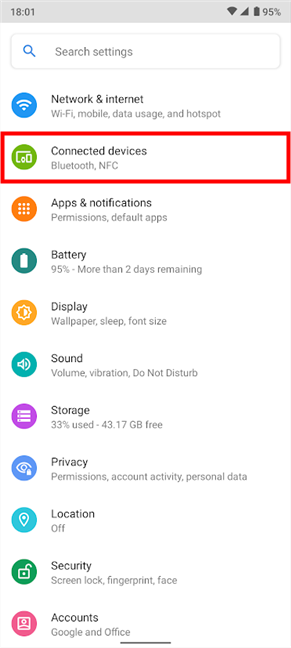
- Turn on the Bluetooth switch to enable it.
iPhone
Locate Settings on the iPhone, and select Bluetooth.
Toggle on the Bluetooth option, and let the button turn green.
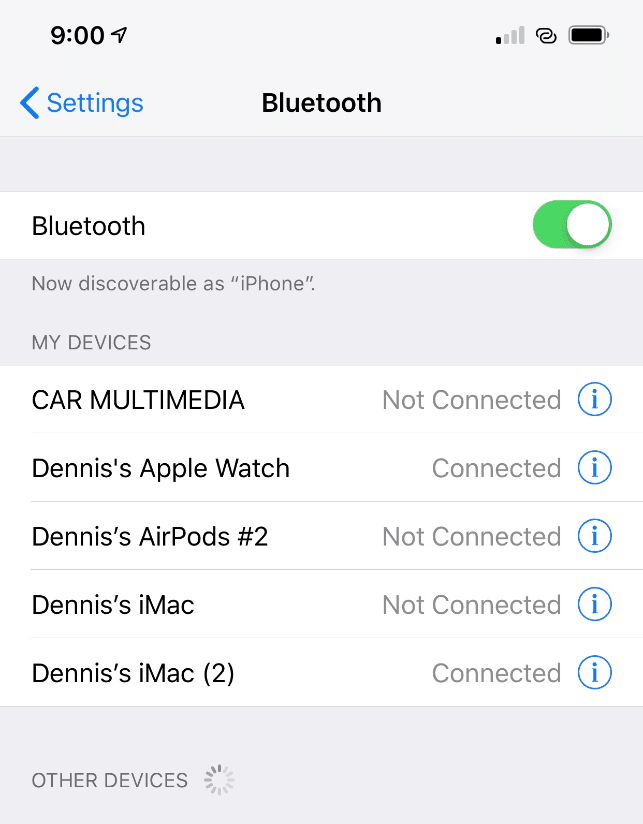
That’s how you can enable Bluetooth on an HP printer.
Step 3: Install the HP Smart App
After turning on Bluetooth on both devices, use the HP Smart app to connect them.
Go to the Play Store or the App Store on your mobile device.
Search for the HP Smart app and tap the Install or Get button to let it install.
Open the app on your mobile and tap on the plus sign or the Add printer option to start the setup.
Let the mobile scan the nearby printers, and select your printer’s name from the list that appears.
Finally, the app will recognize the printer and finalize the connection. Now, you can open a document on the phone and let it print through the HP printer.
Troubleshooting Tips for Bluetooth Connection
Once you set up a Bluetooth connection between the printer and the phone, you may experience trouble with the connection. It’s possible that your printer doesn’t show up in the list of the HP Smart app. What will you do in this situation? Don’t worry, I have a few simple ways to fix this issue.
Method 1: Ensure Your Devices Have Bluetooth Enabled
Connection-related problems occur when either of the devices is not well connected to Bluetooth. Therefore, it's important to verify if the Bluetooth option is ON on both devices.
Method 2: Restart Your Devices
If there is a technical glitch in the HP printer, the mobile device may not recognize it. Therefore, restarting the devices may help you resolve the technical issue.
To restart the printer, press its power button to turn it off.
After that, remove the power cable from the wall outlet.
Wait for a few seconds, and then reconnect the power cable to the wall outlet.
Press the power button to turn on the printer again.
To restart the mobile device, press and hold the Power button for a few seconds until the restart option appears.
Method 3: Update the HP Smart App
When the HP Smart App is not updated, it may create problems with the printer connection. So, keep it updated to the latest version. Finally, try to reconnect the devices and check if the HP Smart app recognizes the HP printer.
Note: Since Bluetooth works only when devices are close, ensure that your HP printer and mobile devices are placed within 10-15 feet of each other.
Frequently Asked Questions
Question
Why Is My Phone Not Connecting to My HP Bluetooth Printer?
If your phone isn’t connecting to your HP printer, it means the devices are not linking. Restart both devices, check the Bluetooth settings, and update the HP Smart app.
Question
Is a Bluetooth Connection Better to Connect HP Printer and Mobile?
Bluetooth is not always better than Wi-Fi for HP printers. A Wi-Fi connection is mostly used for connecting the printer to a mobile device. Overall, a Bluetooth connection is a wireless method free from network interruptions, unlike a Wi-Fi connection.
Question
How to Print With My HP Printer Using the HP Smart App?
Start by installing the 'HP Smart App' on your mobile device. Make sure your HP printer and phone have Bluetooth turned on. Then, open the app and add the printer. To start printing, open a document in the app from your phone’s storage and tap on Print. Finally, the printer will start printing.
Comments
Post a Comment